How-to4 min
Setup Guide: Install Leopoldo on Claude Cowork (Step by Step)
Install Leopoldo on Claude Cowork in 5 minutes. ZIP-of-ZIPs format, one .plugin per domain, uploaded via Customize. After install, start with /leo-onboard.
Leopoldo Editorial
Install Leopoldo on Claude Cowork in 5 minutes. ZIP-of-ZIPs format, one .plugin per domain, uploaded via Customize. After install, start with /leo-onboard.
Leopoldo Editorial
This guide walks you through installing Leopoldo on Claude Cowork in 5 minutes. No technical background required.
When you purchase one or more Leopoldo domains, the download link in your welcome email delivers a ZIP-of-ZIPs: one outer archive that contains:
leopoldo-core.plugin (always included). Identity contract, orchestrator, brand profile, attribution, onboarding, learning layer. Every Leopoldo install needs this..plugin file per purchased domain. For example: leopoldo-investment.plugin, leopoldo-advisory.plugin, leopoldo-legal.plugin.README.md with the same install steps as this guide.Each .plugin file is uploaded separately through the Cowork Customize panel.
Click the Download your system button in your welcome email. You get a single ZIP. Extract it locally. You will see files like:
01-leopoldo-core.plugin
02-leopoldo-investment.plugin
03-leopoldo-advisory.plugin
...
README.md
The numeric prefix (01-, 02-, ...) marks the install order. Always start with 01-leopoldo-core.plugin.
Open the Claude Desktop app and click the Cowork tab at the top. The Cowork home loads with the sidebar showing New task, Projects, Scheduled, Live artifacts, Dispatch, and Customize.
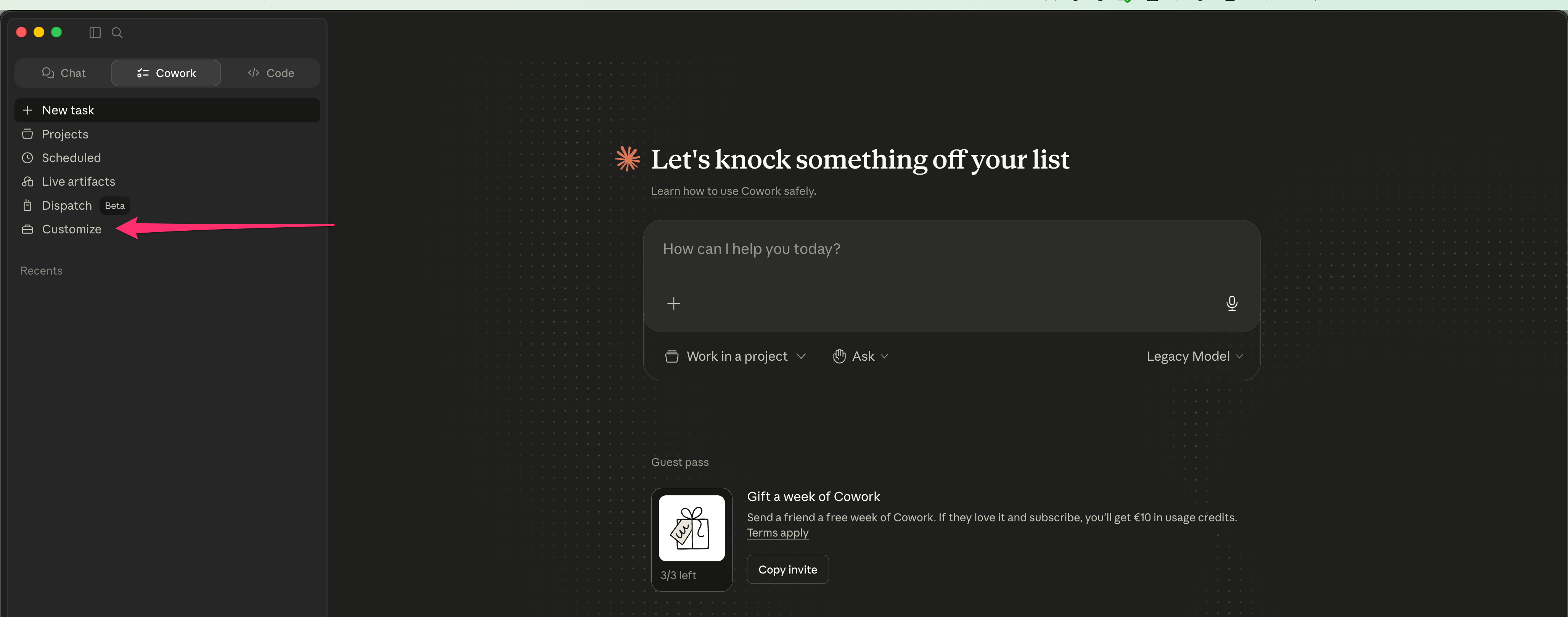
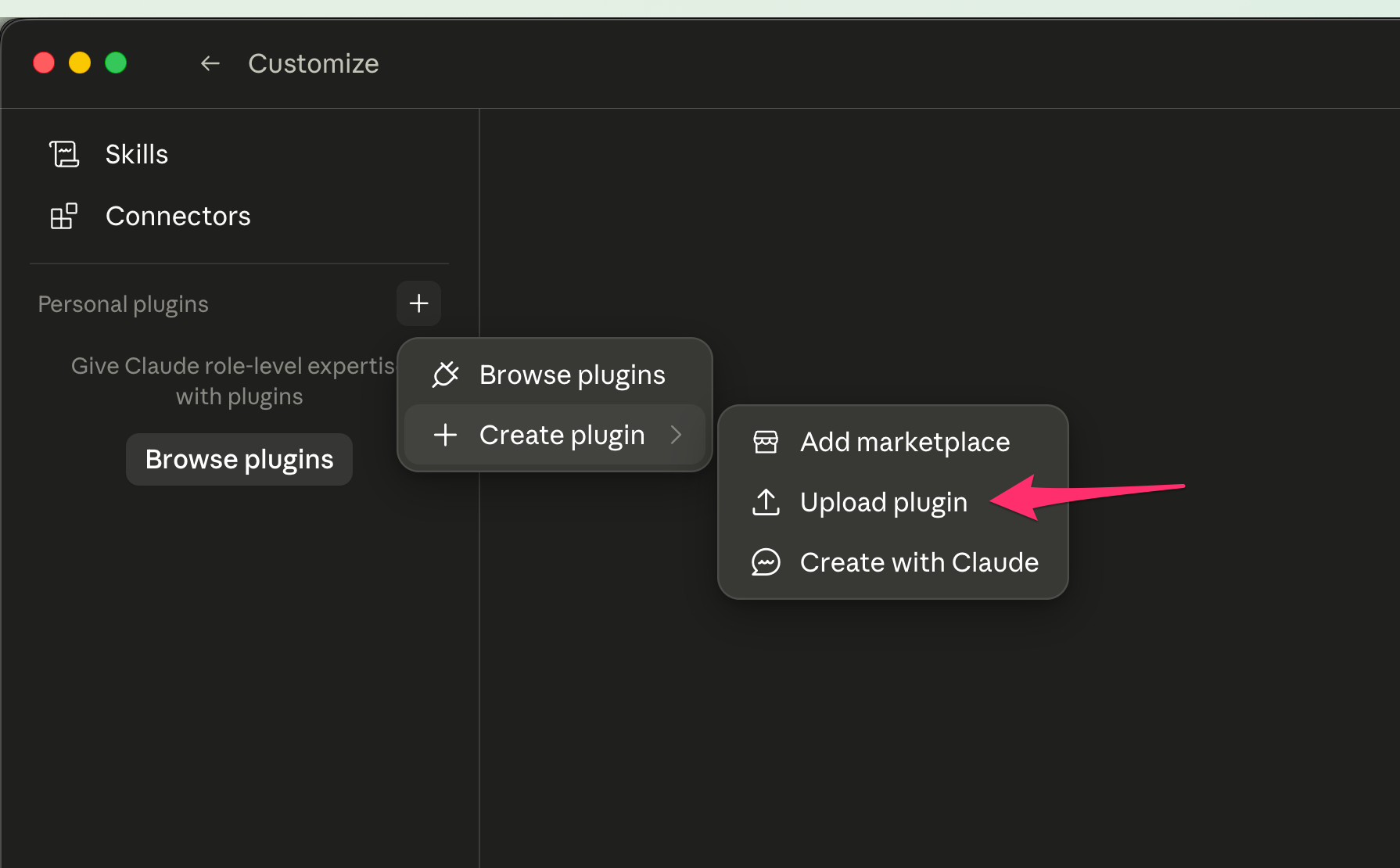
Click Customize in the left sidebar. You see Skills, Connectors, and Personal plugins. Next to Personal plugins, click the + button. A menu opens. Choose Create plugin, then Upload plugin from the submenu.
The Upload local plugin dialog opens. Drag 01-leopoldo-core.plugin into the drop zone or click Browse files and select it. Click Upload.
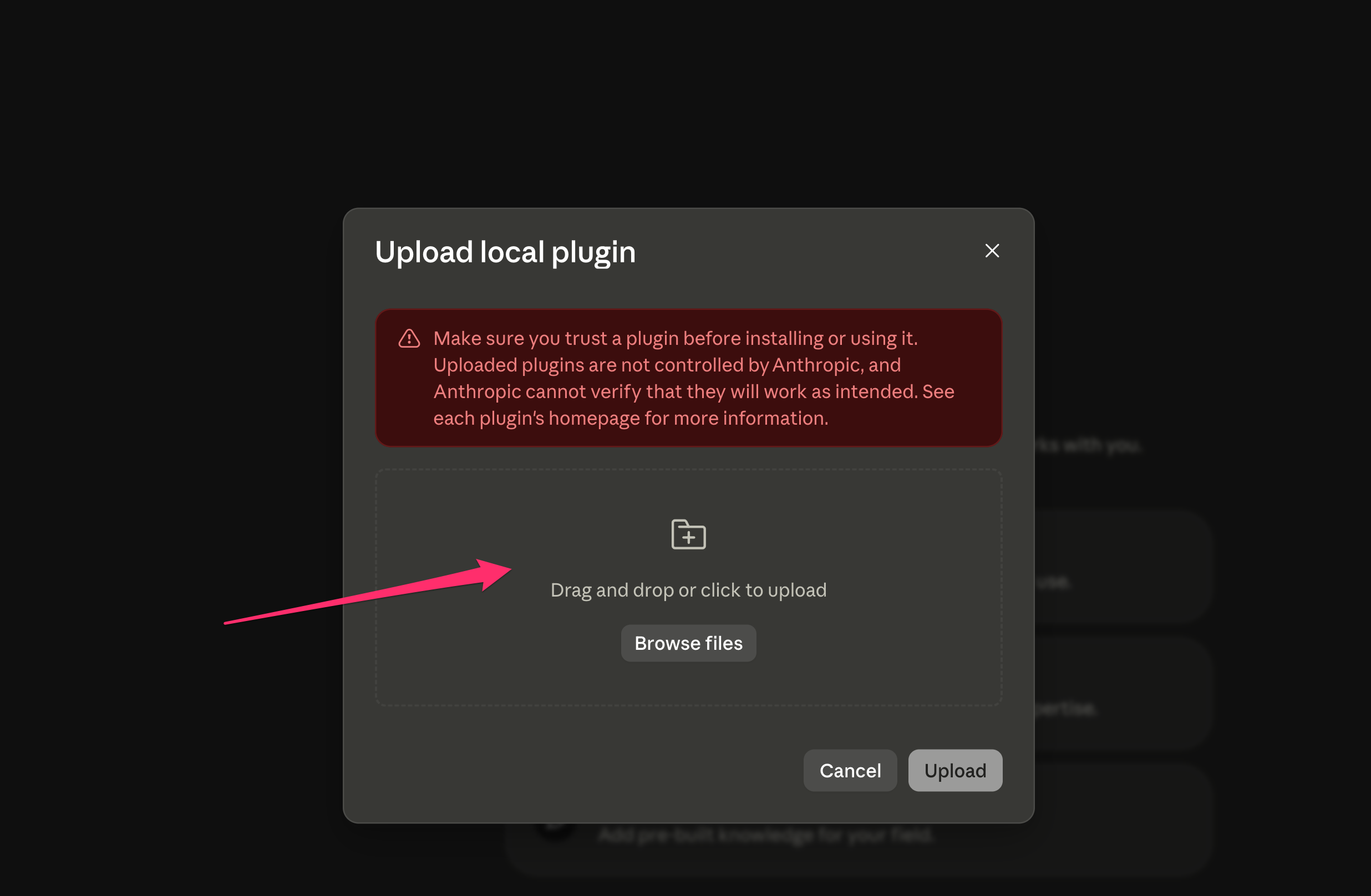
Always upload leopoldo-core.plugin first. It carries the identity, orchestration, brand, and learning skills that every domain plugin references. If you upload a domain plugin first, it sits inert until core is installed. Core is also where your activation key is embedded: Cowork does not prompt you for it.
For each remaining file in numeric order (02-, 03-, ...): click + next to Personal plugins → Create plugin → Upload plugin → drag or browse → Upload.
Among domain plugins the order does not matter (only core had to be first). Each plugin activates automatically a few seconds after upload.
Once all .plugin files are uploaded, open a new chat in Cowork and type:
/leo-onboardOr say "Ciao Leo vorrei fare l'onboarding" in plain language. Leopoldo introduces itself, confirms the install, and walks you through a 5-minute setup:
If the slash command does not appear in autocomplete, refresh the Cowork page; Cowork caches the plugin list for a few seconds.
Updates are explicit, never automatic.
/leopoldo update inside any Cowork chat. The orchestrator checks for new versions and gives you a fresh download link if one is available..plugin via the same Customize → + → Create plugin → Upload plugin flow. Cowork replaces each previous version in place.An offline integrity check runs every session start; any missing or corrupted plugin file surfaces immediately.
leopoldo-core.plugin, or you installed a domain plugin first. Re-install with core uploaded before the others..plugin file (not the outer .zip). The outer ZIP contains the individual .plugin files, but Cowork accepts only the inner files.You are ready. After onboarding, simply chat with Leopoldo in your domain language. The orchestrator routes each message to the right expert, the brand profile keeps every deliverable on-style, and quality gates run before output reaches you.
Explore the full catalog at leopoldo.ai. Adding a new domain regenerates your bundle, so the next download includes the new plugin alongside everything you already have.
You need Claude Desktop installed (with the Cowork tab) and a Claude subscription from Anthropic. No project folder is required: Cowork plugins are uploaded directly into your Cowork workspace via the Customize panel.
Since v1.15 the Cowork package is a ZIP-of-ZIPs: one outer archive containing N .plugin files (one per plugin: leopoldo-core.plugin plus one per purchased domain) plus a README. Each .plugin is uploaded separately through the Cowork Customize panel.
No. The activation key is embedded inside leopoldo-core.plugin (in the customer-specific leopoldo-client.json file). Cowork never prompts for the key during install. Keep the key from your welcome email for /leopoldo update and support reference.
Core carries the orchestrator, identity contract, brand profile, attribution, onboarding, and learning skills that every domain plugin references. If you upload a domain plugin first, it sits inert until core is installed. Order matters only for core; domain plugins among themselves can go in any order.
Open a new chat in Cowork and type /leo-onboard, or say 'Ciao Leo vorrei fare l'onboarding'. Leopoldo introduces itself, confirms the install, and walks you through a 5-minute setup (brand profile, language, first deliverable). If the slash command does not appear in autocomplete, refresh the Cowork page.
Re-download the bundle from the same link in your welcome email (the link rebuilds from the latest source every time), extract, and re-upload each .plugin via Customize → + → Create plugin → Upload plugin. Cowork replaces the previous version in place. Or run /leopoldo update inside a chat to get the upgrade link automatically.